
High Falls State Park, GA, April 2026
Asked no one, ever.
Well, too bad. I am going to explain it anyway. You get them to line up by using math.
Oh, no. Not that word again!
Math! Math! Math! Tuck and roll wuss!
You might ask, what is the problem with images lining up?
This Is The Problem!
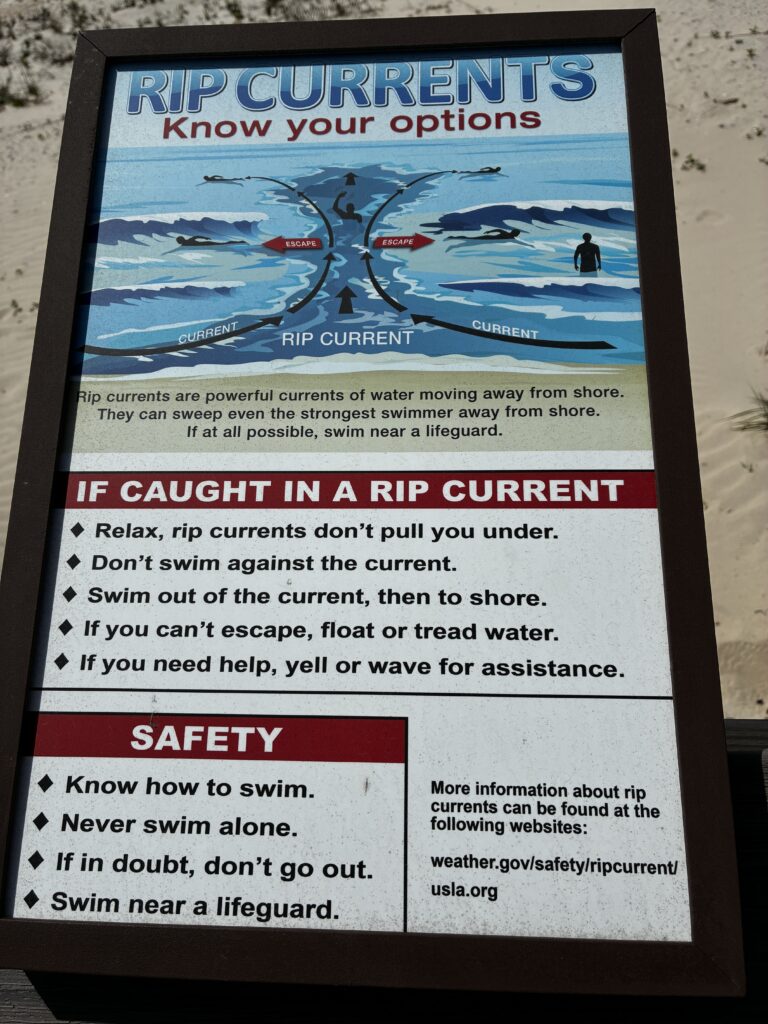
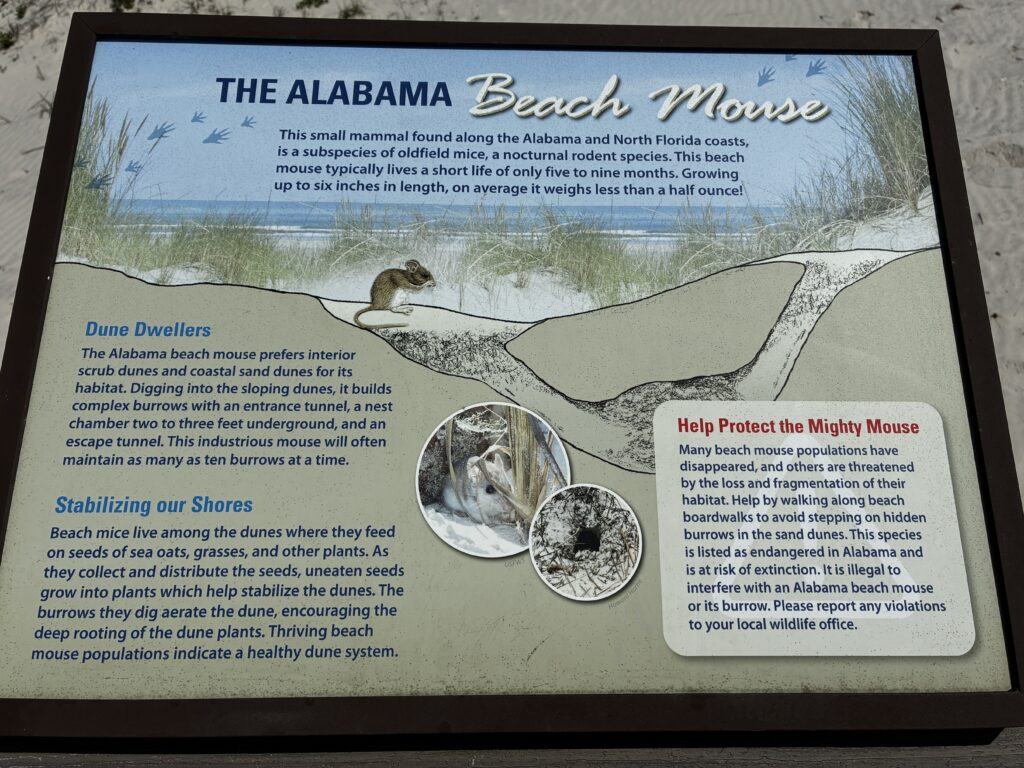
Grid
Rows
Columns
It is not symmetric! It is not lined up! Oh, the humanity! It might not bother you, but I think it should be illegal in all 50 states!
If you do not see the problem here, I am going to unfriend you on Facebook!
Isn’t it Meta, now?
Who cares! I do not use it anyway!
To be fair, this is only an issue with differing aspect ratio images. If you can pair the images up where all images on the same row have the same aspect ratio, it usually looks fine.
What is an aspect ratio?
I am glad you asked. The aspect ratio of an image is the relationship of the width to the height of an image. When people talk about prints that are 5″x7″, that is the aspect ratio of the print, 5:7. If you shrink it down to 2.5″x3.5″, the size is smaller, but the aspect ratio is 5:7. In the case of 5″x7″, dividing the respective sides by 5 and 7 gives 1.00 inches. In the case of 2.5″x3.5″, it gives 0.50 inches. For a digital image, dividing by the aspect ratio with give a common number of pixels, but it might be close to 1 to 2 thousand pixels.
All three of the primary format elements default to doing the “not so great thing”. They also have varying controls for each element – grid, row, column. Worse, some of the controls change when you put them in another element, such a a grid.
If you set two images with the same resolution to full sized display, the row changes to split them 50/50 instead of something closer to 40/60. This makes no sense, and it makes the row act more like the default for grid and column. Column lets to select various default splits, like 50/50, 33/66, 66/33, 33/33/33, or 25/50/25. Using 33/66 gives you a closer fit, but it is still not right in the other direction.
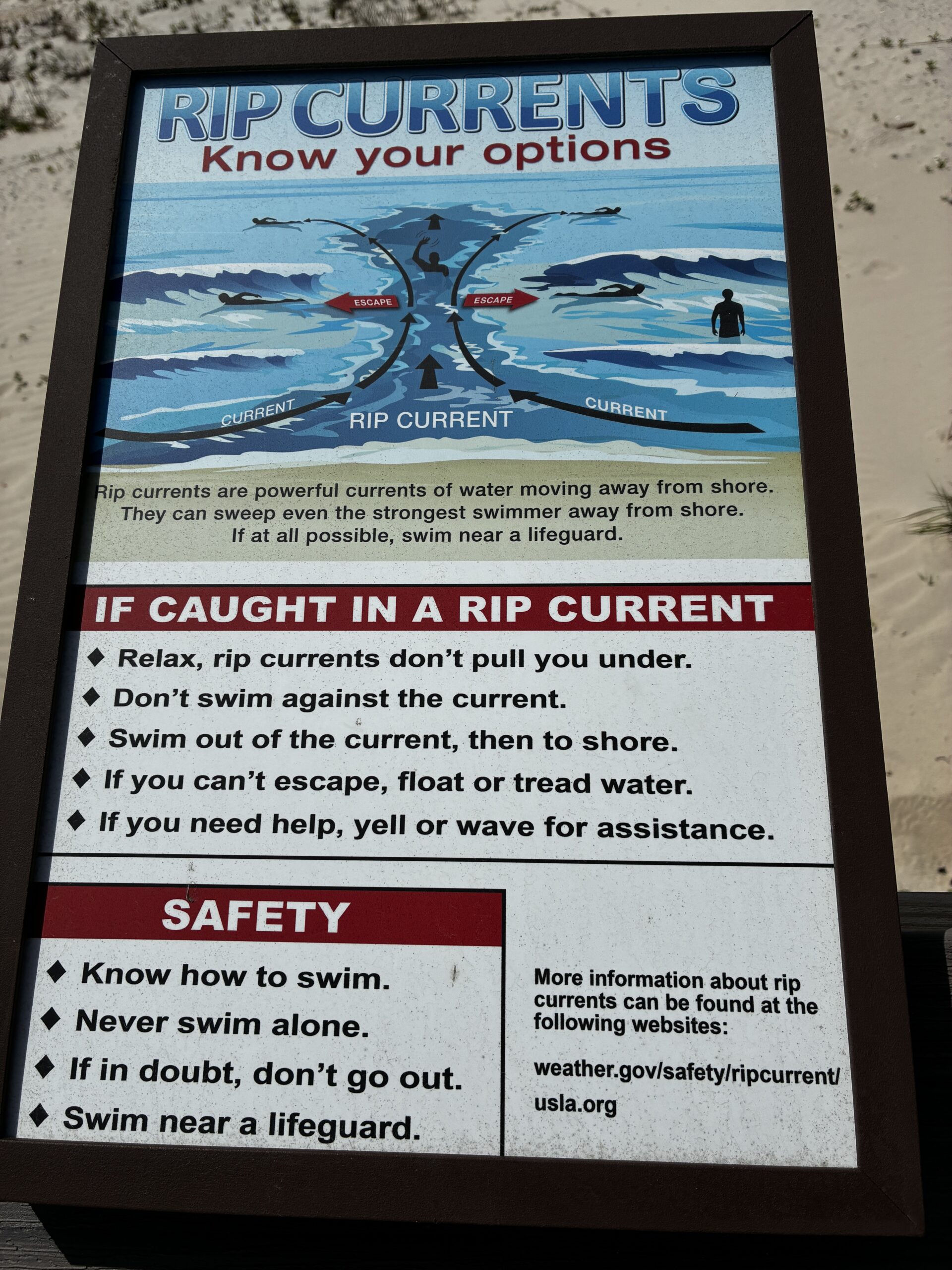
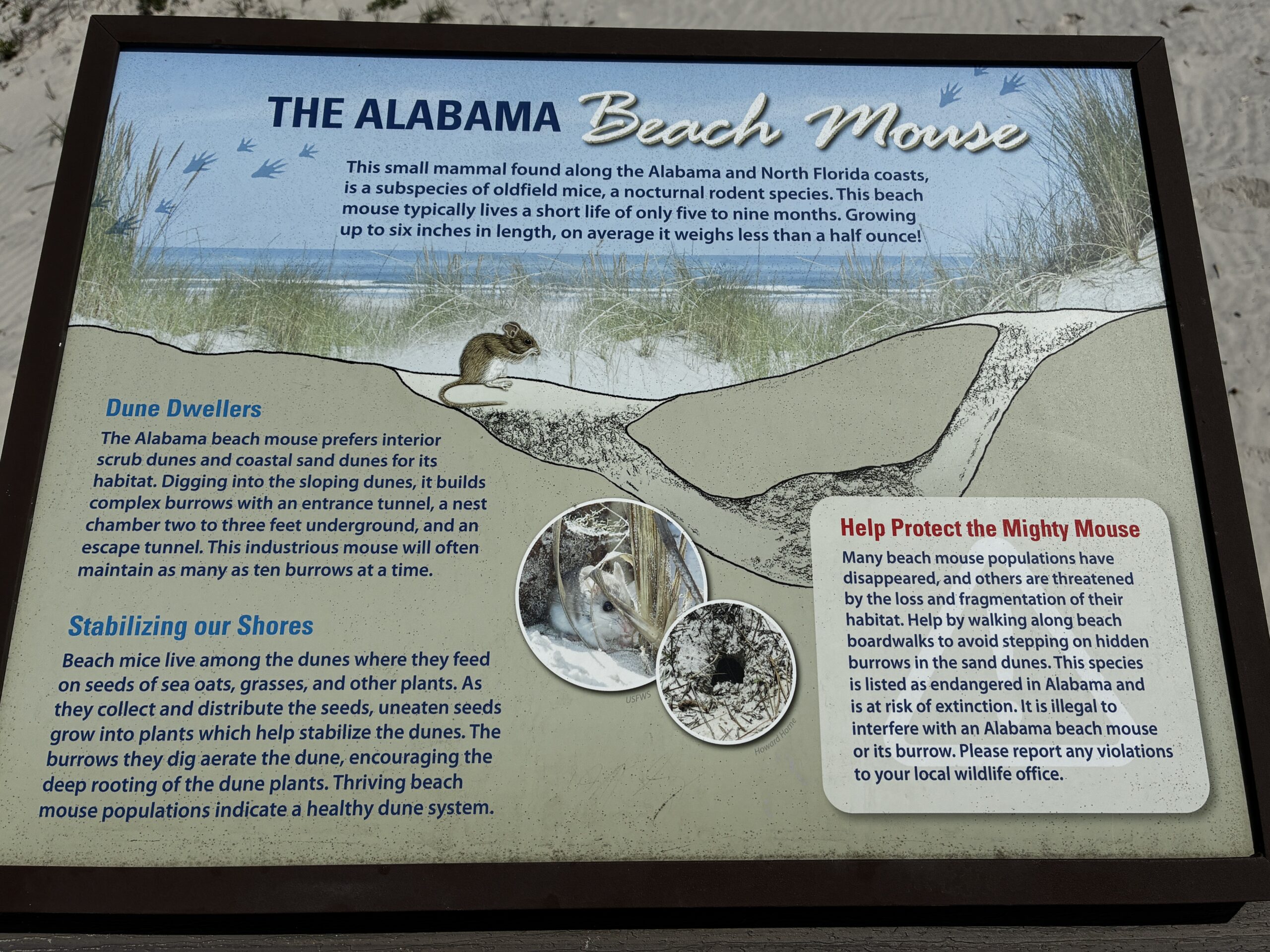
Rows
Columns
This all assumes that you are using images are the same resolution (i.e., number of pixels). If you have a much smaller image, then the larger image can dominate the smaller one. Row and grid elements have a height setting, but it does not appear to force the images to the configured height. Even with this mechanism, different screens (e.g., phone versus PC) will have different width, which will change the required height.
The only solution that seems viable is the column width. (We used the image gallery for a while, but it truncates the image preview and had some technical issues.) Column widths can be set as a percentage, so they will work correctly for any screen resolution.
My initial thought was, “Oh, the ratio of the height of the portrait image to landscape image is 4 to 3, so scale it 75%.
When you scale the left image to 75%, you get close, but no cigar. Since one is 4:3 and the other is 3:4, using the width produces the same results.
The Math
The key is that you have to consider the height and the width together. When you scale the height, you also scale the width. We know the height of the left image has to be 75% to match the first image, so the width of the left image is 0.75 x 3. (Remember, 3:4 aspect ratio is width : height.) is the total width. This means that the left image is and the right image is . By using percentages, it will be correct for any screen and display width.
Generally, this works out in the following way. Remember that the 75% was the ratio of the heights, (i.e., 3 / 4), and we add the widths. The total width is:
The specific ratios are calculated by dividing the (possibly scaled) width by the total width. Starting with the easier to calculate right side, you can simplify it:
Multiply by (i.e., total value does not change).
Multiply through the in the numerator and denominator.
Simplify the denominator.
Doing the same thing for the left is slightly more work, but you will find it works out similar with reversed height and width components.
You can extend this to three images by using the least common multiple of the heights for all the images. I will leave that as an exercise for the reader.
Be aware that the total width is based on a ratio, so it has no units (e.g., inches, feet, pixels). If you use the actual resolution of the image in pixels, the total width has units of pixels, but it gets scaled down to fit your display.
Kate thinks this was created so that she would start scaling her images. In reality, this was created because I calculated this on paper a while ago. I remembered what I needed to do, but I forgot why it worked out that way. (Okay, the table at the end might be a hint for Kate.)
The Solution
Here is a table of column percentages for various common camera and video aspect ratios. The percentages have to be assigned to all columns, or it does not do the right thing.
The (L) is for landscape, and the (P) is for portrait. The vertical header down the left of the table is the aspect ratio of the left hand image. The horizontal header across the top of the table is the aspect ratio of the right hand image. The top percentage is the left column percentage width, and the bottom percentage is the right column percentage width. (Note: the percentage sums to 100%.)
| Aspect | 16:9 (L) | 3:2 (L) | 4:3 (L) | 1:1 | 3:4 (P) | 2:3 (P) | 9:16 (P) |
| 16:9 (L) | 50.00% 50.00% | 54.25% 45.75% | 57.15% 42.85% | 64.00% 36.00% | 70.33% 29.67% | 72.75% 27.25% | 76.00% 24.00% |
| 3:2 (L) | 45.75% 54.25% | 50.00% 50.00% | 53.00% 47.00% | 60.00% 40.00% | 66.67% 33.33% | 69.25% 30.75% | 72.75% 27.25% |
| 4:3 (L) | 42.85% 57.15% | 47.00% 53.00% | 50.00% 50.00% | 57.15% 42.85% | 64.00% 36.00% | 66.67% 33.33% | 70.33% 29.67% |
| 1:1 | 36.00% 64.00% | 40.00% 60.00% | 42.85% 57.25% | 50.00% 50.00% | 57.15% 42.85% | 60.00% 40.00% | 64.00% 36.00% |
| 3:4 (P) | 29.67% 70.33% | 33.33% 66.67% | 36.00% 64.00% | 42.85% 57.15% | 50.00% 50.00% | 53.00% 47.00% | 57.15% 42.85% |
| 2:3 (P) | 27.25% 72.75% | 30.75% 69.25% | 33.33% 66.67% | 40.00% 60.00% | 47.00% 53.00% | 50.00% 50.00% | 54.25% 45.75% |
| 9:16 (P) | 24.00% 76.00% | 27.25% 72.75% | 29.67% 70.33% | 36.00% 64.00% | 42.85% 57.15% | 45.75% 54.35% | 50.00% 50.00% |
Using the table above, look up 3:4 on the left and 4:3 on the top, and you see 36.00% for the left and 64.00% for the right. Applying these columns widths gives:
Most modern phones are 4:3 and modern digital cameras are 3:2. Smaller cameras (micro four-thirds) can be 4:3, and phones allow you to select a (cropped) aspect ratio of various other values, such as 1:1, and 16:9. Most modern video is 16:9. The table should cover 99% of the normal scenarios.
One response to “How Do You Get Your Images To Line Up?”
If a kid talked this way in school the teacher would hit him/her with a ruler.
solution: KATE BUY A RULER!!!!